



Have you ever turned on your CNC laser machine, opened the control software, and found that the machine simply wouldn't connect? You are not alone. Communication failure between the laser machine and the control software is one of the most frequently encountered issues in laser cutting and engraving operations. Without a stable connection, you cannot send cutting jobs, adjust parameters in real time, or monitor machine status.
This comprehensive troubleshooting guide walks you through every possible cause of machine-software communication failure on Chanxan laser systems using LaserCAD software. We cover all three communication methods—USB cable, Ethernet cable, and USB drive (offline)—so you can quickly identify the problem and get back to production.
Why Won't My Laser Machine Connect to the Software?
Before diving into the step-by-step diagnostics, it helps to understand what's happening behind the scenes. The machine and software communicate through a data link—either wired (USB or Ethernet) or offline (USB drive). If any link in that chain fails, the software cannot send instructions to the machine.
Common symptoms include:
The software shows "Machine Not Connected" or "Communication Error"
The machine does not respond to job commands
No port is detected when adding a USB connection
The Ethernet connection fails despite proper cabling
Chanxan laser cutters support three communication methods, and each has its own troubleshooting path.
The Three Communication Methods on Chanxan Laser Systems
| Communication Method | When to Use |
|---|---|
| USB Cable | Real-time control from PC (most common) |
| Ethernet Cable | Real-time control from PC with longer cable distance |
| USB Drive | Offline operation without a PC connection |
USB Cable Communication: Why Can't My PC Detect the Machine?
This is the most common communication setup. If your PC cannot detect the machine via USB, work through the following steps in order.
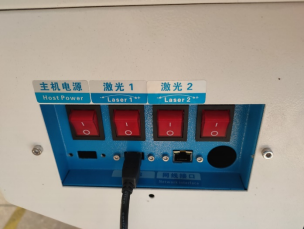
Step 1: Is the USB Cable Properly Connected?
Ask yourself:
Is the USB cable securely plugged into both the machine and the PC?
Are there any visible signs of damage on the cable or connectors?
Have you tried a different USB port on your computer?
Pro Tip: A loose or damaged USB cable is the #1 cause of communication failure. Always start with the physical connection. Try swapping the cable with a known working one if possible.
Step 2: Is the USB Driver Installed Correctly?
Ask yourself:
Was the USB driver installed when you set up LaserCAD?
Did you connect the USB cable before installing the driver?
Is your antivirus software blocking the driver installation?
To check:
Open Windows Device Manager.
Look for any devices with a yellow warning icon or listed as "Unknown Device."
If you see one, the driver is likely missing or corrupted.
Common Mistake: Many users connect the USB cable before installing the driver. This often prevents proper driver installation. Always install the driver first, then connect the cable.
How to fix it: Reinstall the driver following the instructions in the software installation guide. After reinstalling, restart both the machine and the PC.
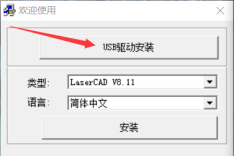
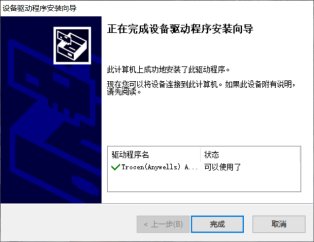
Step 3: Is the Software Communication Setting Correct?
Ask yourself:
Have you selected the correct communication mode in LaserCAD?
Does the software detect the correct COM port?
To verify:
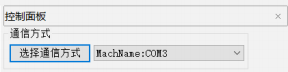
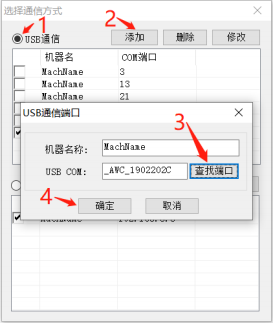
Open LaserCAD and navigate to the Communication Settings menu.
In the pop-up window, select USB Communication.
Click Add, then click Find Port.
You should see a port code similar to
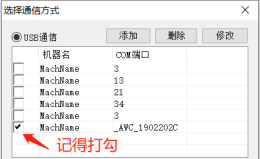
_AWC_1902202C.Select the detected port and click OK.
If no port appears: The driver is still not installed correctly, or the USB cable is not properly connected. Go back to Step 2.
Ethernet Cable Communication: Why Can't I Connect Over the Network?
Using an Ethernet cable allows longer-distance communication but requires proper network configuration. If your machine and PC are connected via Ethernet but still won't communicate, follow these steps.
Step 1: Is the Ethernet Cable Properly Connected?
Ask yourself:
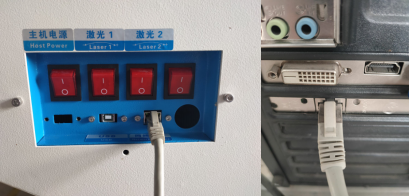
Is the Ethernet cable securely plugged into both the machine and the PC?
Are the network port indicator lights on both ends lit or blinking?
If the indicator lights are off: The cable may be faulty, or the network port on one end may be disabled. Try a different cable or a different port.
Step 2: Are the IP Addresses Configured Correctly?
Ask yourself:
Are the PC and machine on the same subnet?
Does the PC's IP address match the machine's IP address in the first three segments?
The rule is simple:
The first three numbers of the IP address must match the machine's IP (displayed on the control panel).
The fourth number must be different.
| Device | IP Address |
|---|---|
| Machine panel shows | 192.168.8.1 |
| Your PC should be set to | 192.168.8.2 |
How to check (Windows):
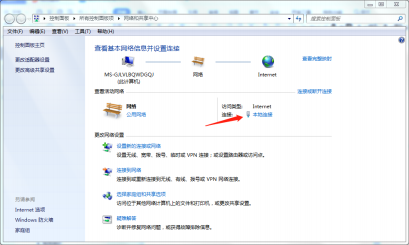
Open Local Area Connection (Ethernet) settings.
Go to Internet Protocol Version 4 (TCP/IPv4) properties.
Set a static IP address with:
Subnet mask:
255.255.255.0Default gateway: leave blank or set to the machine IP
Note: IP configuration steps may vary slightly depending on your operating system version (Windows 7, 10, or 11).
Step 3: Is the Software Configured for Ethernet Communication?
Ask yourself:
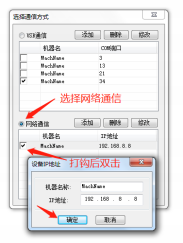
Did you select Ethernet Communication in LaserCAD's settings?
Is the machine's IP address correctly entered in the software?
To check:
Open LaserCAD.
Navigate to Communication Settings.
Select Ethernet Communication.
Enter the machine's IP address exactly as shown on the control panel.
Click Connect.
Troubleshooting tip: If the connection still fails, temporarily disable your PC's firewall or antivirus to rule out blocking. Remember to re-enable it after testing.
USB Drive Offline File Transfer: Why Isn't My Machine Reading the File?
This method bypasses real-time communication entirely. Files are saved to a USB drive and manually loaded onto the machine. If the machine cannot find or run your file, check the following.
Step 1: Did You Save the File in the Correct Format?
Ask yourself:
Did you save the file as an offline file in LaserCAD?
Does the file have the
.ud5extension?
Correct procedure:
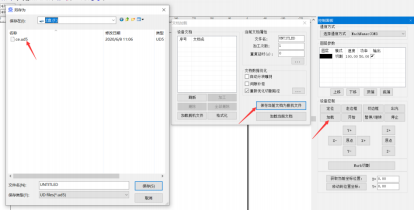
Open LaserCAD and configure your graphic parameters.
Click Load.
In the pop-up window, click Save Current Document as Offline File.
Save the file to the root directory (not inside a folder) of the USB drive.
Critical: The machine only recognizes
.ud5files. If you save in any other format, the machine will simply not see the file.
Step 2: Is the USB Drive Inserted Correctly?
Ask yourself:
Is the USB drive inserted into the correct port on the machine's control panel?
Does the machine recognize the USB drive (e.g., does it show a "USB inserted" message)?
Step 3: Are You Copying the File Correctly on the Machine Panel?
Ask yourself:
Did you navigate to Menu → USB File → Copy File to Machine?
Procedure:
Insert the USB drive into the machine's USB port.
On the machine control panel, go to Menu.
Select USB File, then Copy File to Machine.
Select your file and start the job.
Communication Method Quick Reference
| Method | Best For | Key Checkpoints |
|---|---|---|
| USB Cable | Daily real-time operation | Cable connection, driver installation, port detection |
| Ethernet | Long-distance or network-based setups | Cable connection, IP address matching, software settings |
| USB Drive | Offline work without PC connection | File must be .ud5, saved to USB root directory |
Frequently Asked Questions
Why does the software say "No Port Found" when I click Find Port?
This almost always means the USB driver is not installed correctly, or the USB cable is not properly connected. Reinstall the driver and restart both the machine and PC.
Can I use both USB and Ethernet at the same time?
No. Only one communication method should be active at a time. If you switch from USB to Ethernet, restart both the software and the machine to avoid conflicts.
Why does the machine connect via USB but not via Ethernet?
Ethernet requires correct IP configuration. Check that both the machine and PC are on the same subnet and that no firewall is blocking port communication.
What should I do if my USB drive is not recognized by the machine?
Try formatting the USB drive to FAT32 format. The machine may not read NTFS or exFAT formats. Also, ensure the file is saved in the root directory and has the .ud5 extension.
Does Chanxan provide technical support for communication issues?
Absolutely. Chanxan offers comprehensive after-sales support, including remote troubleshooting, video tutorials, and replacement parts. If you have tried all the steps above and still cannot establish communication, our team is here to help.
Still Having Issues? Contact Chanxan Technical Support
If you have worked through all the steps above and your Chanxan laser machine still cannot communicate with the software, please reach out to our support team with the following information:
Machine model number
Software version (LaserCAD version)
Operating system version (Windows 7 / 10 / 11)
Communication method attempted (USB / Ethernet / USB Drive)
Screenshot of the error message or port detection window
Device Manager screenshot (for USB driver issues)
Chanxan's experienced technical support engineers will respond within 24 hours to diagnose and resolve your issue.
Remember: Every Chanxan laser system comes with dedicated after-sales support, including free training, lifetime access to troubleshooting resources, and prompt technical assistance.
Conclusion
Communication failures between your laser machine and software can be frustrating, but most issues are caused by a handful of common problems—loose cables, missing drivers, incorrect IP settings, or wrong file formats.
By systematically following the steps in this guide—checking physical connections, verifying drivers, configuring IP addresses, and confirming software settings—you can resolve the vast majority of machine-software communication issues quickly and without external help.
Regular preventive checks—such as keeping drivers updated, inspecting cables for wear, and maintaining a clean USB drive for offline work—will also help minimize future communication errors and keep your Chanxan CO2 laser system running smoothly.
Need Technical Support?
Get in touch with our team of technical experts for step-by-step assistance and solutions tailored to your machine.
Get a Consultation